
![Google Veo 3.1 Prompts Pros Use [Complete Guide] - text-to-video generation, AI video workflow, prompt structure guide](https://blog.bananathumbnail.com/wp-content/uploads/2025/12/gemini_3_pro_image_Google_Veo_3_1_Prompts_Pros_Us-1024x571.jpg)
Table of Contents
- What Makes Google Veo 3.1 Different?
- How Do Pro Creators Structure Google Veo 3.1 Prompts?
- Why Does Google Veo 3.1 Need Reference Images?
- Best Google Veo 3.1 Settings for Cinematic Motion (the boring but important bit)
- How to Fix Common Google Veo 3.1 Mistakes
- Google Veo 3.1 vs Alternatives: Which Is Better for Storytelling?
- How to Get Started with Google Veo 3.1
- Listen to This Article
All right, let’s get into this. There’s a massive myth floating around the creator community right now. People think that because AI video generators like google veo 3.1 are getting “smarter,” you can just type “cool car chase” and get a Hollywood blockbuster.
Here’s the thing: that is exactly why 90% of AI video looks like a weird, jittery mess.
I’ve spent the last few weeks really digging into Google Veo 3.1 since (lol) it hit General Availability on December 17, 2025. And honestly? It’s a beast. It’s The that makes it possible. But it’s a beast you have to know how to drive — and if you just mash the gas pedal—meaning you write vague, short prompts—you’re gonna crash.
So today, we’re going to go over the specific prompt structures that professional creators are using right now with google veo 3.1. We’re going to look at why your videos might look glitchy while someone else’s look like they were shot on a $50,000 camera. Let’s pop the hood.
What Makes Google Veo 3.1 Different?
(It’s kind of like…)
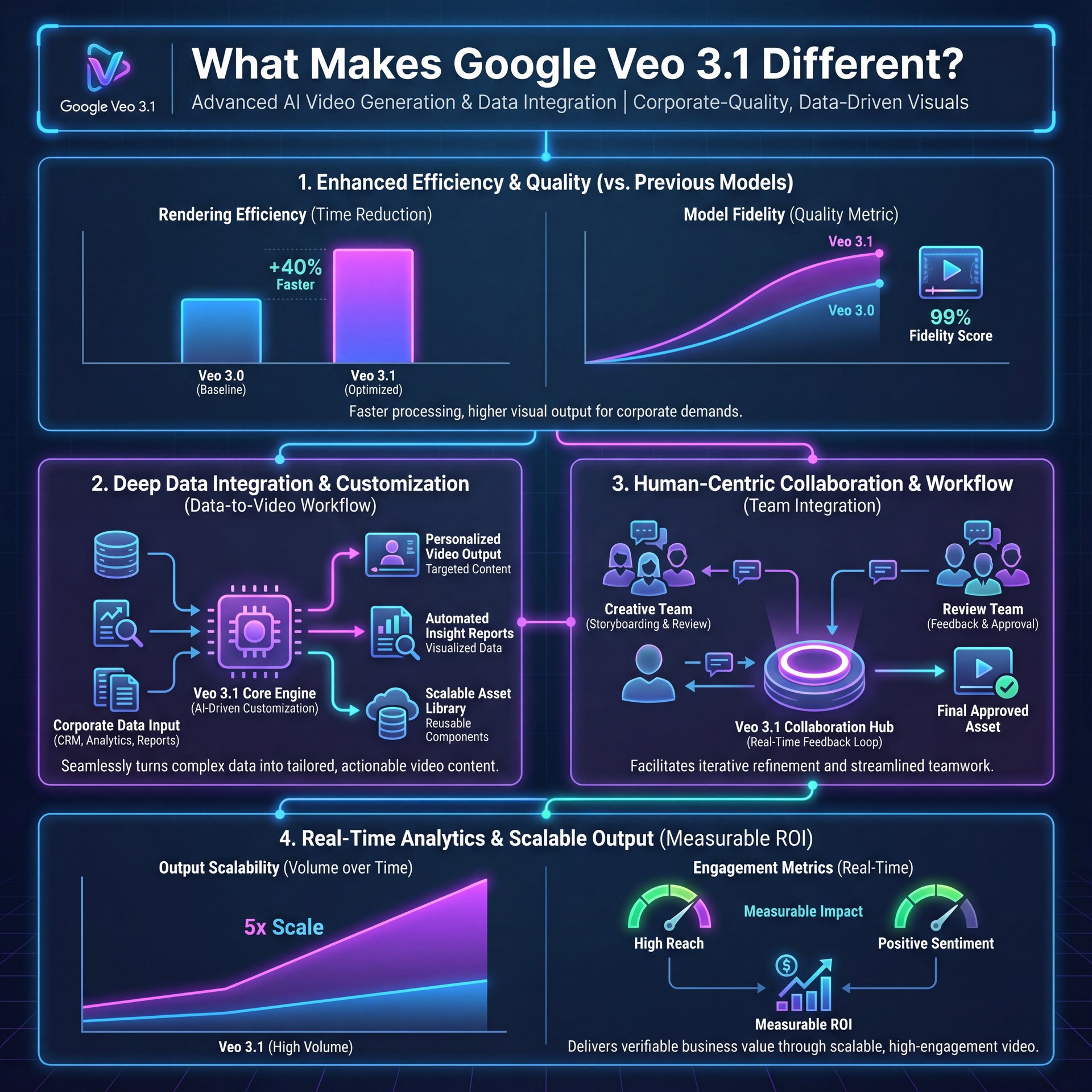
First off, why are we even talking about google veo 3.1 specifically? Well, the market is moving fast. The AI video generator market is projected to grow from $ten.55 billion in 2025 to around $32 billion by 2031 at a 20.02% CAGR. That’s huge. But the real story is quality.
I remember testing the early versions of these tools, and honestly, they were cool “demo-ware.” Fun to show your friends, but you couldn’t use them for real work. Google veo 3.1 is different because it’s production-ready.. Real talk.
According to the data from LMArena’s leaderboard as of December 10, 2025, google veo 3.1 Fast Audio actually ranked #1 for text-to-video preference, with Veo 3.1 Audio taking the #2 spot. Not even close. That means when people looked at videos side-by-side, they consistently picked Veo.
We covered this in more detail in [Fix Nano Banana Pro Prompts That Fail [Guide]](https://blog.bananathumbnail.com/nano-banana-pro-prompts/).## The Physics Upgrade – quick version
Here’s what I noticed straight away: the physics. Consider this: video changes everything. In the past, if you tried to generate a video of water pouring or hair blowing in the wind, the AI would hallucinate. Water would turn into slime; hair would clip through faces.
But with Veo 3.1, human preference tests rated it 4× more representative of realistic physics for liquids, hair and gravity compared to the older models. That’s a big deal if you’re trying to make something that doesn’t look like a cartoon.
:::did_you_know{type=”did_you_know”}
4x Better Physics?
It sounds wild, but tests show Veo 3.1 is rated 4 times more realistic for liquids, hair, and gravity than previous models. If you’ve been struggling with “floaty” objects in your AI videos, this model specifically targets that physics engine problem.
:::
If you’re a casual user, this means less frustration. If you’re a pro, it means you can actually use these clips in a client project. I’ve seen data suggesting that 30% of digital video ads in 2025 were built or enhanced with generative AI. So if you aren’t using it, you’re already behind the curve.
How Do Pro Creators Structure Google Veo 3.1 Prompts?
What if you could turn this into reality just by typing a sentence? Hi, I’m Kevin, and Google just released Veo3, an AI video generator that turns your imagination into cinematic quality videos using nothing more than a simple prompt. In this video, I’ll walk you through exactly how to use Veo3, how to write better prompts and how to get the most out of it, even if you’re brand new to AI video tools. The payoff from video is real. That’s huge. Oh and best of all, you could use it for free for an entire month. Let’s dive in. So, what is Google Veo3? Veo3 is Google’s latest AI video generation model built by DeepMind, and it lets you create cinematic quality videos from just a text prompt. It understands things like camera movement, lighting and composition, so the results feel polished and natural, far beyond most AI tools. But here’s what really sets it apart. Veo3 doesn’t just generate video. It also adds audio automatically. Like here in this example, I’m one with nature now. Nature would prefer some personal space. That includes background music, ambient sound effects and even voice narration if you want it to speak specific lines of text.
Professional creators. the ones making the stuff that goes viral (use a structure). I like to think of it like a recipe. You can’t just throw flour and eggs in a bowl and hope for a cake.
The Camera Directive – quick version
The biggest difference I see is camera control. Pros don’t just describe the subject; they describe the lens. Instead of “man walking down street,” a pro prompt looks like this: “Cinematic shot, 35mm lens, shallow depth of field, smooth dolly in, man walking down a rainy Tokyo street at night, neon lighting, high contrast.”
See the difference? You’re telling the AI how to film the scene. I found that Veo 3.1 is surprisingly responsive to film terminology. If you say “handheld,” it adds a slight shake. If you say “gimbal smooth,” it glides.This is exactly why pro creators get smooth, cinematic camera moves. Beginners often get jittery or inconsistent results.
Lighting is Everything
Another thing I’ve noticed is that Veo 3.1 loves lighting descriptors. If you leave the lighting vague, it defaults to a sort of flat, boring look. I always recommend adding terms like “volumetric lighting,” “rim light,” or “softbox lighting.” It tells the AI where to put the shadows, and shadows are what make things look real.
(Generally.)
:::quick_tip{type=”quick_tip”}
The Pro Prompt Formula
Don’t just describe the subject. Use this order: [Camera Angle/Movement] + [Lighting/Mood] + [Subject Action] + [Environment Details]. For example: “Low angle, tracking shot + Golden hour backlighting + A vintage car speeding + On a dusty desert highway.”
:::
Speaking of getting the details right, if you’re struggling to get the base look right before you even start with video, you might wanna check out our guide on Fix Nano Banana Pro Prompts That Fail. It covers a lot of the same principles about being specific with your descriptive words.
Why Does Google Veo 3.1 Need Reference Images?
What if you could turn this into reality just by typing a sentence? Hi, I’m Kevin and Google just released Veo3, an AI video generator that turns your imagination into cinematic quality videos using nothing more than a simple prompt. In this video, I’ll walk you through exactly how to use Veo3, how to write better prompts and how to get the most out of it, even if you’re brand new to AI video tools. Oh, and best of all, you could use it for free for an entire month. Let’s dive in. So, what is Google Veo3? Veo3 is Google’s latest AI video generation model built by DeepMind and it lets you create cinematic quality videos from just a text prompt. It understands things like camera movement, lighting and composition, so the results feel polished and natural, far beyond most AI tools. But here’s what really sets it apart. Veo3 doesn’t just generate video. It also adds audio automatically. Like here in this example, I’m one with nature now. Nature would prefer some personal space. That includes background music, ambient sound effects and even voice narration if you want it to speak specific lines of text.
Multimodal Prompting
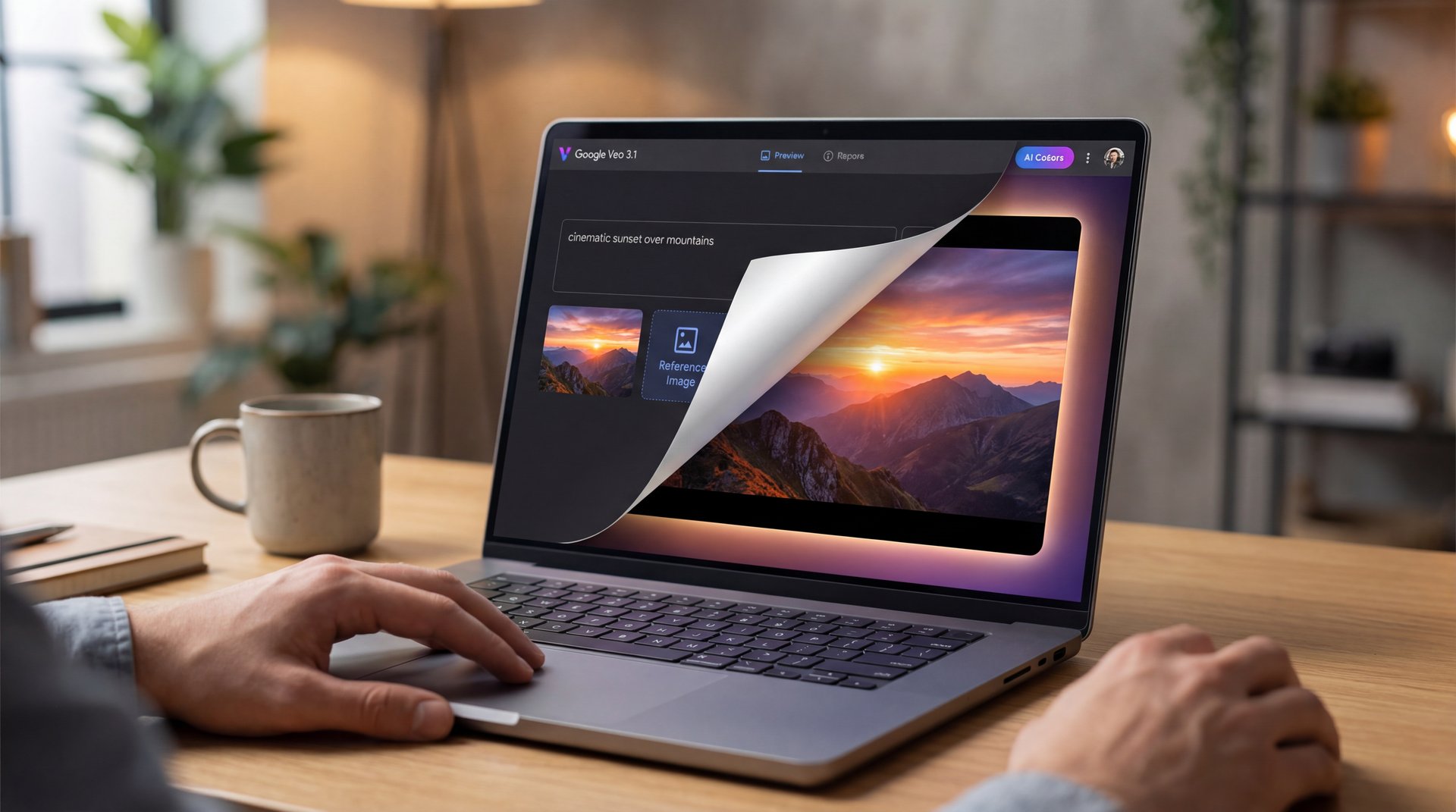
Veo 3.1 supports what they call “Ingredients to Video.” This is just a fancy way of saying you can give it a picture and say, “Use this person.” I tried this out recently with a photo of a specific car, then prompted it to drive through a city. The consistency was way better than text alone.
First and Last Frame Control
This seems a feature I really like. You can upload (trust me on this) a starting image and an ending image and Veo 3.1 will figure out the middle. Imagine you have a shot of a guy standing at a door 💀 and another shot of him sitting at a desk. You can tell Veo 3.1 to generate the walk between those two points.
:::before_after{type=”before_after”}
Text vs. Multimodal Results
Text Only: You ask for a “blue robot,” and it changes design in every single shot. Continuity is broken. With Reference Image: You upload a sketch of the robot, so veo 3.1 keeps the design consistent across ten diffrent clips. It’s the difference between a random generation and a cohesive story. Explore video generation tools
:::
Best Google Veo 3.1 Settings for Cinematic Motion (the boring but important bit)
Now, let’s talk about settings. You can write the best prompt in the world, but if your settings are off, it won’t matter. One thing that surprised me with Veo 3.1 is how it handles motion. In older models, high motion usually meant “high distortion.”
Frame Rate and Resolution
Veo 3.1 can generate 1080p videos that go over 60 seconds. That’s a big jump. But here’s a tip: just because you can generate 60 seconds doesn’t mean you should do it all at once. I find that generating in 5-10 second chunks gives you way more control, then you can use the “extend” feature to add another five seconds.
Understanding Gemini Integration
Since Veo 3.1 is integrated with Gemini, you can actually use Gemini to help you write the prompts. I do this all the time. Seriously. I’ll go into Gemini and say, “Hey, write me a Veo 3.1 prompt for a sci-fi city establishing shot, focusing on camera movement.” It usually spits out something better than what I would have come up with on the fly.
If you’re interested in how AI interprets visual data, we actually broke down some similar concepts in our article about 9 Hidden ChatGPT Image Secrets to Boost Art.
:::creator_spotlight{type=”creator_spotlight”}
Real World Results: SaaS Startup
A SaaS startup recently reported achieving a 38.6% lower CPA (Cost Per Acquisition) using Veo-generated creative compared to their best manual ads. They used the tool to rapidly test different hooks and visual styles without burning their budget on production crews.
:::
How to Fix Common Google Veo 3.1 Mistakes
I see the same problems popping up over and over again. People get frustrated, blame the tool, and give up. But usually, it’s a user error.
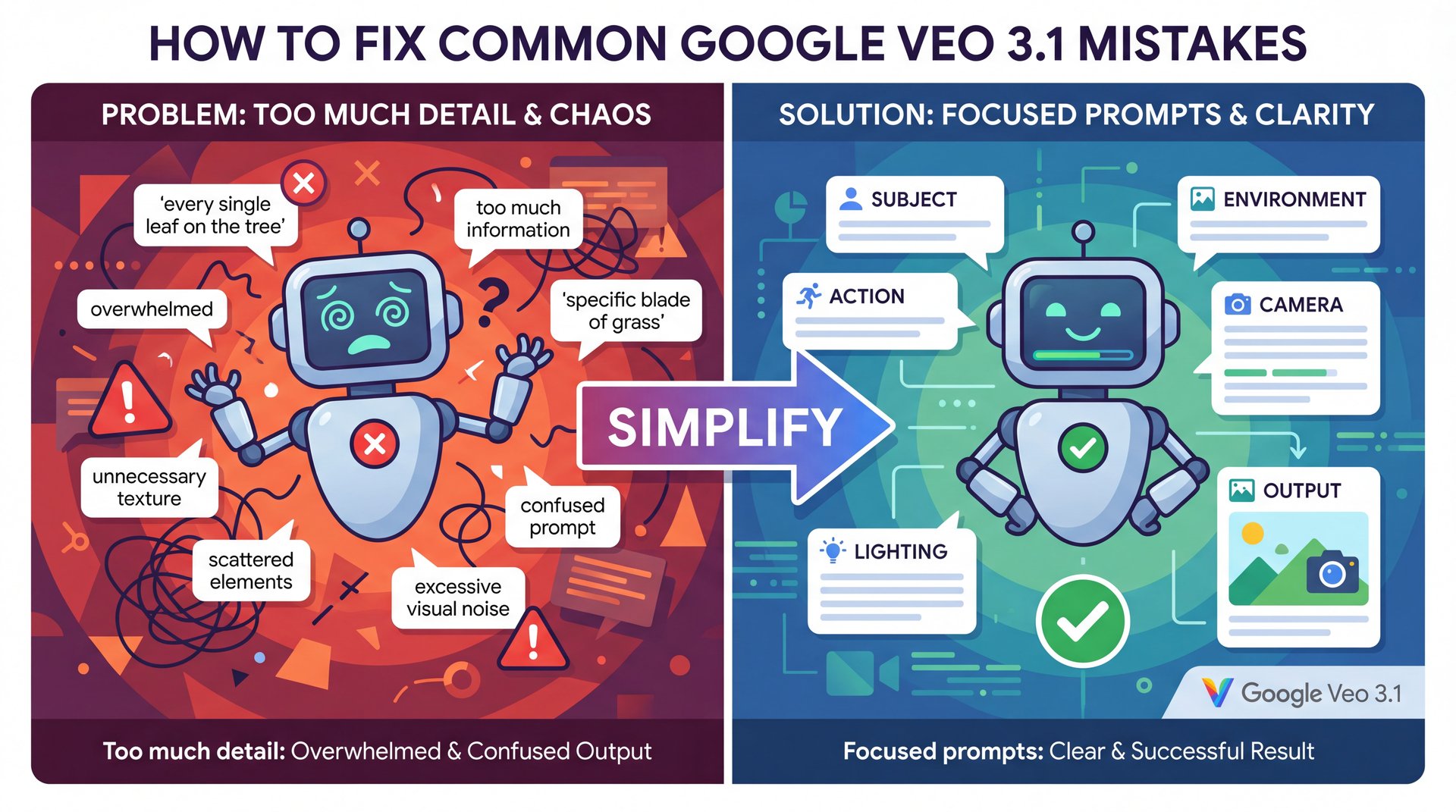
Mistake 1: Overloading the Prompt
There is such a thing as too much information. If you try to describe every single leaf on a tree, the AI gets confused. It tries to pay attention to everything and ends up Focus on noth. Keep it focused: subject, action, environment, camera, lighting. That’s it.
Mistake 2: Expecting Perfection on Shot #1
This is the big one. I talk to people who say, “I typed the prompt and the video was bad.” Yeah, that happens. Even the pros roll the dice a few times. You have to iterate. Tweak the lighting word, change the camera lens size. It’s a process, not a vending machine.
:::common_mistake{type=”common_mistake”}
Don’t Ignore the “AI Look”
⚠️ Mistake: Assuming the AI will automatically fix lighting and texture issues.
Reality: Even Veo 3.1 can look “glossy” and fake if you don’t specify textures. Game changer. Use words like “film grain,” “4k texture,” “imperfections,” and “dust particles” to break up that smooth digital look.
:::
Google Veo 3.1 vs Alternatives: Which Is Better for Storytelling?
What if you could turn this into reality just by typing a sentence? Hi, I’m Kevin and Google just released Veo3, an AI video generator that turns your imagination into cinematic quality videos using nothing more than a simple prompt. In this video, I’ll walk you through exactly how to use Veo3, how to write better prompts and how to get the most out of it, even if you’re brand new to AI video tools. Oh and best of all, you could use it for free for an entire month. Let’s dive in. So, what is Google Veo3? Veo3 is Google’s latest AI video generation model built by DeepMind and it lets you create cinematic quality videos from just a text prompt. It understands things like camera movement, lighting and composition, so the results feel polished and natural, far beyond most AI tools. But here’s what really sets it apart. Veo3 doesn’t just generate video. It also adds audio automatically. Like here in this example, I’m one with nature now. Nature would prefer some personal space. Trust me on this. That includes background music, ambient sound effects and even voice narration if you want it to speak specific lines of text.
If you need a talking head for a corporate training video, Synthesia is still probably your go-to. More than 70% of the Fortune 100 use AI avatar-based video solutions as of April 2025 and Synthesia dominates that space. But for creative storytelling? Veo 3.1 is currently winning in my book. The control over camera moves and the physics engine makes it feel more “cinematic.”
The “AI Look”
We all know that “AI look.” The weird glossy sheen, the unnatural movement. Analysts are saying Veo 3.1 might mark the death of the “AI look.” I think that’s a bit optimistic, you can still tell it’s AI if you look closely, but the gap is closing fast.
Pages with AI Overviews in search are seeing lower click-through rates, which is pushing brands to make more video. They need content that engages people instantly and Veo 3.1 helps you make that content without needing a film crew.
How to Get Started with Google Veo 3.1
All right, so you want to – seriously want to give this a shot. Here’s what I would do if I were you. First, stop trying to make a full movie. Start with a single, perfect shot. Try to get a coffee cup sitting on a table with steam rising, looking photo-realistic.
Use the prompt structure we talked about: Camera + Lighting + Subject + Environment. Once you nail that, try moving the camera. Add “smooth dolly in” as an explicit camera directive. thing is the kind of precise language that pros use to avoid jittery or inconsistent camera moves. See how the steam reacts.
Then, try the “Ingredients” feature. Take a picture of your own coffee cup and see if you can make the AI animate it. It’s about building skills, layer by layer. Not even close. Don’t rush it.
:::quick_reference{type=”quick_reference”}
Quick Start Checklist
- **Define the Lens:** Start with “35mm” or “Wide angle.”
- **Set the Light:** “Golden hour” or “Neon noir.”
- **Action:** Keep it simple. “Walking,” “Driving,” “Looking.”
- **Reference:** Upload an image to lock the character look.
five. Iterate: Don’t settle for the first result. Tweak and re-roll.
:::
And look, if you’re feeling overwhelmed, that’s normal. This tech is moving quick. But honestly, once you get the hang of the structure, it’s a lot of fun. It opens up creative doors that used to be locked for anyone without a million-dollar budget.
Frequently Asked Questions
What are the key features of Veo 3.1 that make it stand out from other AI video generation models?
Veo 3.1 offers superior physics simulation (4x better for liquids/hair), extended video generation up to 60 seconds and precise camera controls that mimic real-world cinematography better than competitors.
How does Veo 3.1 handle character consistency in extended video clips?
It uses “Ingredients to Video” (multimodal prompting) where you upload reference images, plus first/last frame interpolation, to keep characters looking the same across different shots.
What are the main challenges professionals face when using Veo 3.1?
The biggest hurdles are mastering the specific prompt syntax for camera moves and managing the “AI gloss” look, though precise lighting descriptors and texture prompts help solve this.
What are the key features of Veo 3.1 that make it stand out from other AI video generation models?
Veo 3.1 offers superior physics simulation (4x better for liquids/hair), extended video generation up to 60 seconds and precise camera controls that mimic real-world cinematography better than competitors.
How does Veo 3.1 handle character consistency in extended video clips?
It uses “Ingredients to Video” (multimodal prompting) where you upload reference images, plus first/last frame interpolation, to keep characters looking the same across different shots.
What are the main challenges professionals face when using Veo 3.1?
The biggest hurdles are mastering the specific prompt syntax for camera moves and managing the “AI gloss” look, though precise lighting descriptors and texture prompts help solve this.
Related Videos
Related Content
• pros
• prompts
For more on this topic, check out: prompts
Listen to This Article
![Google Veo 3.1 Prompts Pros Use [Complete Guide] - text-to-video generation, AI video workflow, prompt structure guide](https://blog.bananathumbnail.com/wp-content/uploads/2025/12/gemini_3_pro_image_Google_Veo_3_1_Prompts_Pros_Us-150x150.jpg "AI Creative Studio")
